Some links in this article are affiliate links. If you buy through them I may earn a commission, at no extra cost to you. I only recommend tools I use on real client stores.
Most Shopify stores I audit have the Meta pixel, but they’re losing a big share of their purchase events to ad blockers, iOS privacy settings and duplicate tracking. The fix is the Conversions API (CAPI), which sends events from Shopify’s servers straight to Meta instead of relying only on the visitor’s browser. On Shopify you can turn it on without code. This guide walks through the setup, how to check it’s working, and the problems that break it.
In this article
What the Conversions API actually does
The Meta pixel runs in the shopper’s browser. If the browser blocks it, the event is lost and your ads optimize on incomplete data.
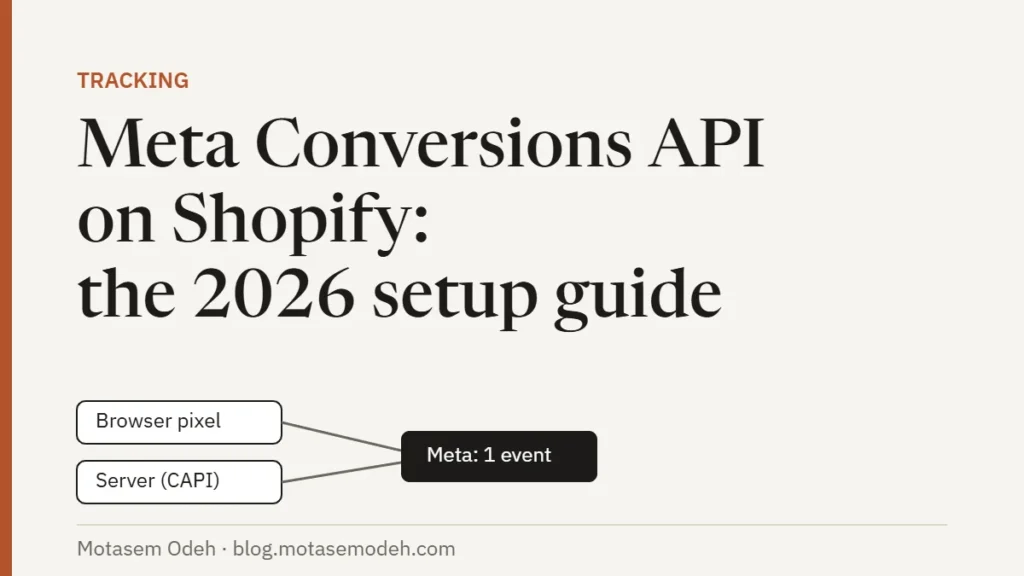
The Conversions API sends the same events (ViewContent, AddToCart, InitiateCheckout, Purchase) from Shopify’s servers to Meta’s servers. Ad blockers can’t stop that. Meta then matches the browser event and the server event and keeps one, which is called deduplication.
The result: more purchases attributed, better match quality, and campaigns that optimize on real data.
Before you start
You need:
- Admin access to your Shopify store.
- A Meta Business portfolio (Business Manager) that owns your Facebook page, ad account and pixel (dataset).
- Admin access to that pixel in Meta.
- No other pixel code in your theme. More on that below; it’s the #1 cause of problems.
Quick check: run your store through my free Meta pixel checker to spot duplicate pixels before you start.
Step-by-step: enable CAPI in Shopify
1. Install the Facebook & Instagram app
In Shopify admin, open the Shopify App Store and install Facebook & Instagram by Meta. It appears under Sales channels.
2. Connect your Meta assets
Open the app and connect your Facebook account, Business portfolio, page, ad account and pixel. Use the business that owns the pixel, not a personal account that was only given access.
3. Turn on data sharing
Go to Sales channels → Facebook & Instagram → Settings → Share data settings. In the customer data-sharing section, turn on Enable data-sharing.
4. Choose “Maximum”
You’ll see three levels:
| Level | What it sends |
|---|---|
| Standard | Meta pixel only (browser) |
| Enhanced | Pixel + Conversions API |
| Maximum | Pixel + Conversions API + Meta’s latest ad technology |
Choose Maximum. Enhanced also uses CAPI, but Maximum sends the most data and is what Meta recommends for match quality.
5. Select your pixel and confirm
Pick the pixel you want to use and click Confirm. That’s the setup.
How to check it’s working
Don’t assume it works. Check, because I regularly find stores where the toggle is on but no server events arrive.
- Meta Events Manager → your pixel → Overview. Click an event like Purchase. Under connection method you should see both Browser and Server.
- Test Events tab. Open your store in a normal browser window, view a product and add it to cart. Events should appear within a minute or two.
- Deduplication. In the event details, Meta shows whether browser and server events are being deduplicated. If you see roughly double the purchases you actually had, deduplication is failing (see problem 1).
- Event Match Quality (EMQ). Each event gets a score out of 10. Purchase events on Maximum usually score well because Shopify sends hashed email and phone. A low score on Purchase means customer data isn’t being passed.
Give it a few hours. Server events sometimes take time to show up after you first enable them.
The 4 problems I see on almost every store
Problem 1: Duplicate pixels
The old way to add a pixel was pasting code into theme.liquid or firing it through Google Tag Manager. If that code is still there and the app is connected, the same events fire twice with different event IDs, so Meta can’t deduplicate them. Your reported purchases inflate and your optimization gets worse.
Fix: search your theme code for fbq( and connect.facebook.net, check GTM for Meta tags, and check Settings → Customer events for custom pixels. Keep one source: the app.
Problem 2: Wrong pixel connected
Stores that changed agencies often have two or three pixels. The app is connected to one, but the ads run on another.
Fix: in Ads Manager, check which dataset your campaigns use, and make sure that’s the one selected in the app.
Problem 3: Old checkout scripts
Shopify moved checkout to checkout extensibility. Pixel code that used to live in “Additional scripts” on the order status page no longer runs on upgraded checkouts.
Fix: remove leftover scripts and rely on the app’s Purchase event (or a custom pixel under Customer events if you have a special case).
Problem 4: Consent settings blocking events
If you sell in the EU, UK or other regions with cookie laws, your consent banner may stop the browser pixel until the visitor accepts. That’s expected and legal. Just don’t “fix” it by forcing the pixel. CAPI still helps here, within what your privacy settings allow.
What about headless (Hydrogen) stores?
The Facebook & Instagram app covers the standard Online Store. On a headless Hydrogen or custom storefront, browser events come from your own code, so you need to send server events yourself (from your Oxygen/Node backend or a server-side tagging setup) and pass the same event_id from browser and server for deduplication. That’s a custom job, and it’s one I do often.
Quick checklist
- Facebook & Instagram app installed and connected to the business that owns the pixel
- Data sharing on, level Maximum
- Only one pixel source (no theme code, no GTM duplicate, no stray custom pixel)
- Events Manager shows Browser + Server for Purchase
- Deduplication working, purchases not doubled
- Ads use the same pixel the app is connected to
If you’d rather start a new store with tracking set up correctly from day one, Shopify’s trial is $1/month for the first 3 months. And if your store is already live and the numbers don’t add up, that’s exactly what the box below is for.
FAQ
Do I need a paid app for Meta CAPI on Shopify?
No. Shopify’s official Facebook & Instagram app does it for free on standard stores. Paid apps help in edge cases like multiple pixels or custom events.
Is Conversions API the same as the Meta pixel?
No. The pixel tracks in the browser; CAPI sends events from the server. You should use both, and Meta deduplicates them.
How long until I see server events?
Usually minutes, sometimes a few hours after you first enable it. If there are still no server events after a day, check problems 1 and 2.